


FileZilla: VDS-to-VDS File Migration Guide
Move your site from old to new VDS: FileZilla over FTP/SFTP, speed tips, permissions, and error handling.

Migrating to a new VDS but worried about moving files from the old one? With FileZilla, transfer between two servers is straightforward — you don’t have to download to your PC and re-upload. This guide covers both the classic 2-leg method and server-to-server (FXP) patterns.
Scenario
- Old VDS: WordPress site, files in
/var/www/html - New VDS: empty server, files going here
Prep
- Take backups: snapshots of both VDSes
- Target folder ready on new VDS: empty, or check whether an install exists
- DB separately: move the database separately (dump/import). FileZilla isn’t for DBs.
Method 1: 2-leg transfer (most common)
Your PC is the bridge. Downside: files traverse your PC’s internet twice (old → PC → new). For 10 GB on a 200 Mbps PC: 30+ minutes.
Step 1: download from old VDS
FileZilla → File → Site Manager → New site:
- Host: old-vds-ip
- Protocol: SFTP - SSH File Transfer Protocol (secure, port 22)
- Logon: Normal, user + password
Connect → right pane shows remote dir → go to /var/www/html.
Left pane: pick local download folder (e.g., C:\backup\old-site).
Drag everything from right to left → download starts.
Step 2: upload to new VDS
Same window: File → Site Manager → New site:
- Host: new-vds-ip
- Protocol: SFTP
- Connect
Left pane: C:\backup\old-site (where you downloaded)
Right pane: /var/www/html (new VDS target)
Drag left → right → upload begins.
Method 2: direct VDS-to-VDS (FXP-like)
FileZilla itself doesn’t support server-to-server, but you can run rsync/scp on the old VDS — true server-to-server:
# From old VDS to new
rsync -avz --progress /var/www/html/ root@new-vds-ip:/var/www/html/
Wins:
- No PC traffic — servers talk directly
- Datacenter-internal 10 Gbps is often much faster
rsyncretries; if interrupted, resumes from where it stopped
For one-off vs scheduled sync, see our cron guide.
Method 3: tar + scp (large files)
Many tiny files slow down most transfers. Bundle into one archive first:
# On old VDS
cd /var/www
tar -czf html-backup.tar.gz html/

# scp to new
scp html-backup.tar.gz root@new-vds-ip:/tmp/

# Extract on new
ssh root@new-vds-ip
cd /var/www && tar -xzf /tmp/html-backup.tar.gz
10,000 small files become 1 big tar.gz — fast.
Performance tips
- Concurrent transfers: FileZilla → Edit → Settings → Transfers → Maximum simultaneous: 8-10
- Speed limit: don’t saturate your home internet — Settings → Speed limits
- Compression: SFTP is already encrypted; no extra compression needed
Permissions and ownership
Files often land owned by root when uploaded. WordPress needs www-data:
sudo chown -R www-data:www-data /var/www/html
sudo chmod -R 755 /var/www/html
sudo chmod -R 644 /var/www/html/wp-content/uploads
Wrong perms → “Permission denied” → site looks broken.
DB migration separately
After files, the database:
# Dump on old
mysqldump -u root -p wp_db | gzip > wp.sql.gz

# scp to new
scp wp.sql.gz root@new-vds-ip:/tmp/

# Import on new
zcat /tmp/wp.sql.gz | mysql -u root -p wp_db
For WordPress, update wp-config.php DB settings on the new VDS.
Common errors
- “Connection timed out”: Firewall (UFW or KavesNET) → port 22 open? See UFW post
- “Permission denied”: SFTP user lacks write rights on target
- Half-copied, then cut: internet drop → FileZilla queue stays, right-click → resume
- Transfer is slow: PC bottleneck → run rsync server-to-server
- Garbled characters: file names with non-ASCII → FileZilla → Settings → Charset → UTF-8
Conclusion
Small site (<5 GB): FileZilla 2-leg is enough; visual and simple. Mid site (5-50 GB): rsync server-to-server is much faster. Large site (50+ GB): combine tar + scp + rsync.
KavesNET runs VDS-to-VDS on internal 10 Gbps — cuts migration time 5-10×. For migration help, contact us.
Related: FileZilla Server Setup · Plesk Site Migration
Related Posts
You might also like these.
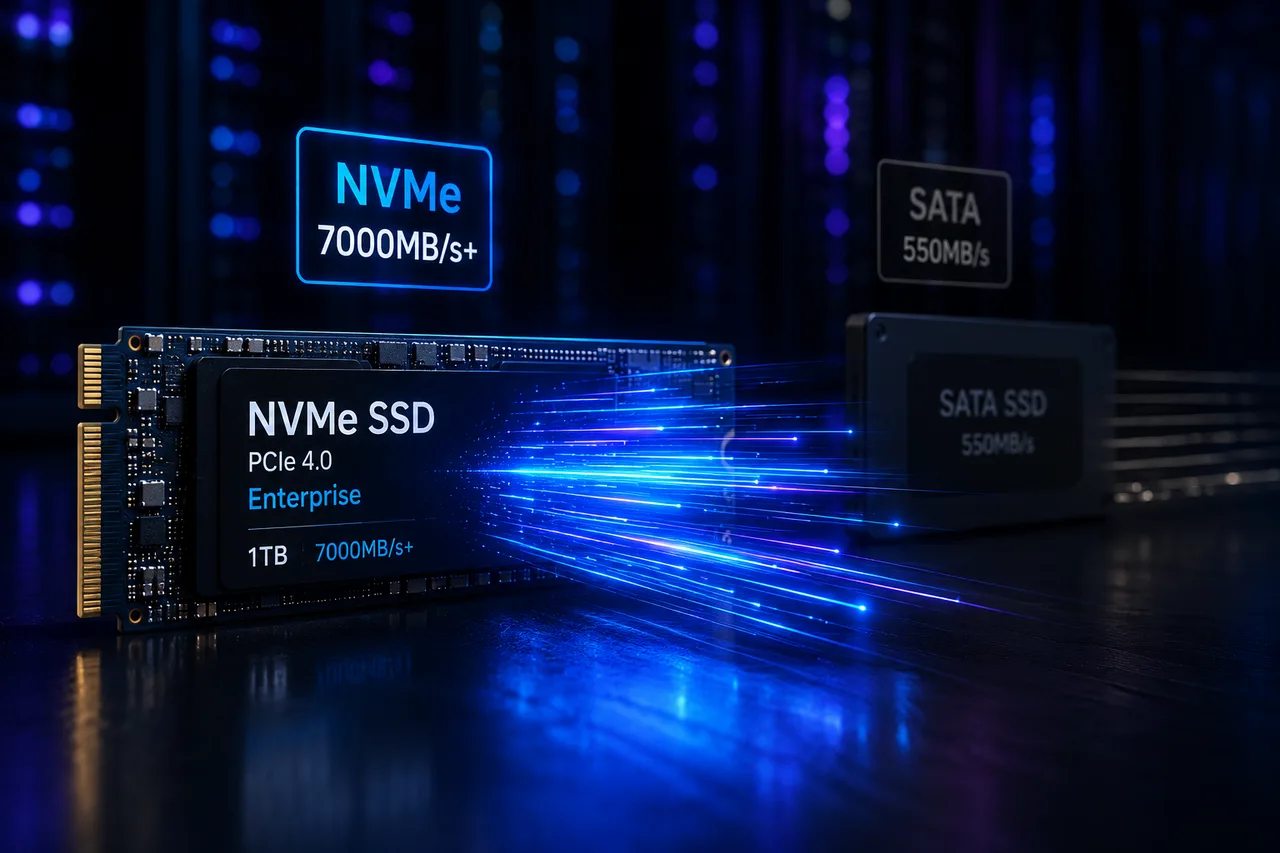
What Is NVMe SSD? Its Impact on Server Performance (vs SATA SSD)
What is NVMe, and how does it differ from SATA SSD? IOPS, latency, and real-world numbers showing why NVMe is now the server standard.
Read More
What Is a Dedicated Server? Who Actually Needs One?
What is a dedicated server, how does it differ from a VDS, and when is it a must? Advantages, costs, and the co-location alternative — all in this guide.
Read More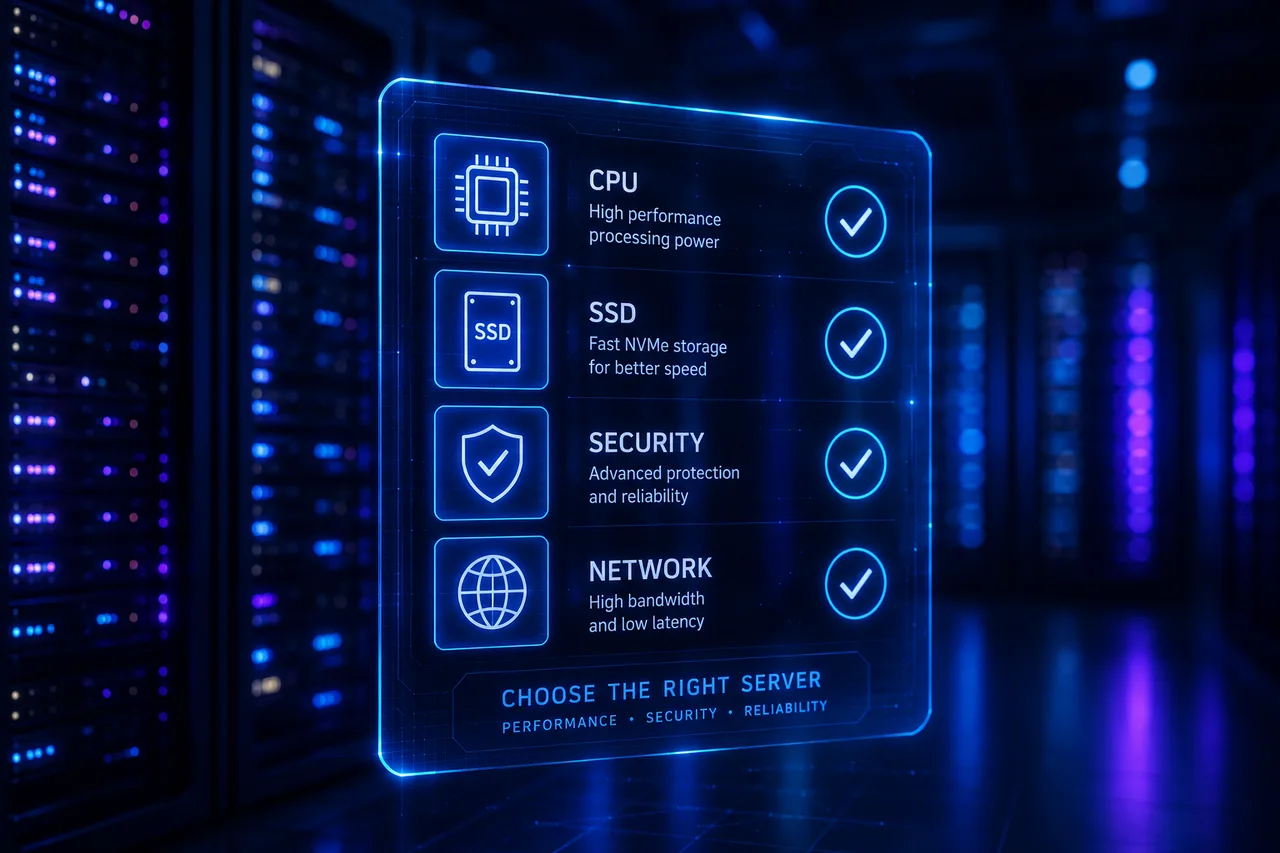
VDS Rental Guide: 10 Criteria to Check Before You Order
From CPU model to disk type, DDoS protection to backups — the 10 criteria to verify before renting a VDS, explained one by one. Don't pick the wrong plan.
Read More