


Plesk Linux Installation: Step-by-Step Guide (Ubuntu / AlmaLinux)
How to install Plesk Obsidian on a VDS: system prep, auto-installer, license activation, and first-site setup — all in one place.
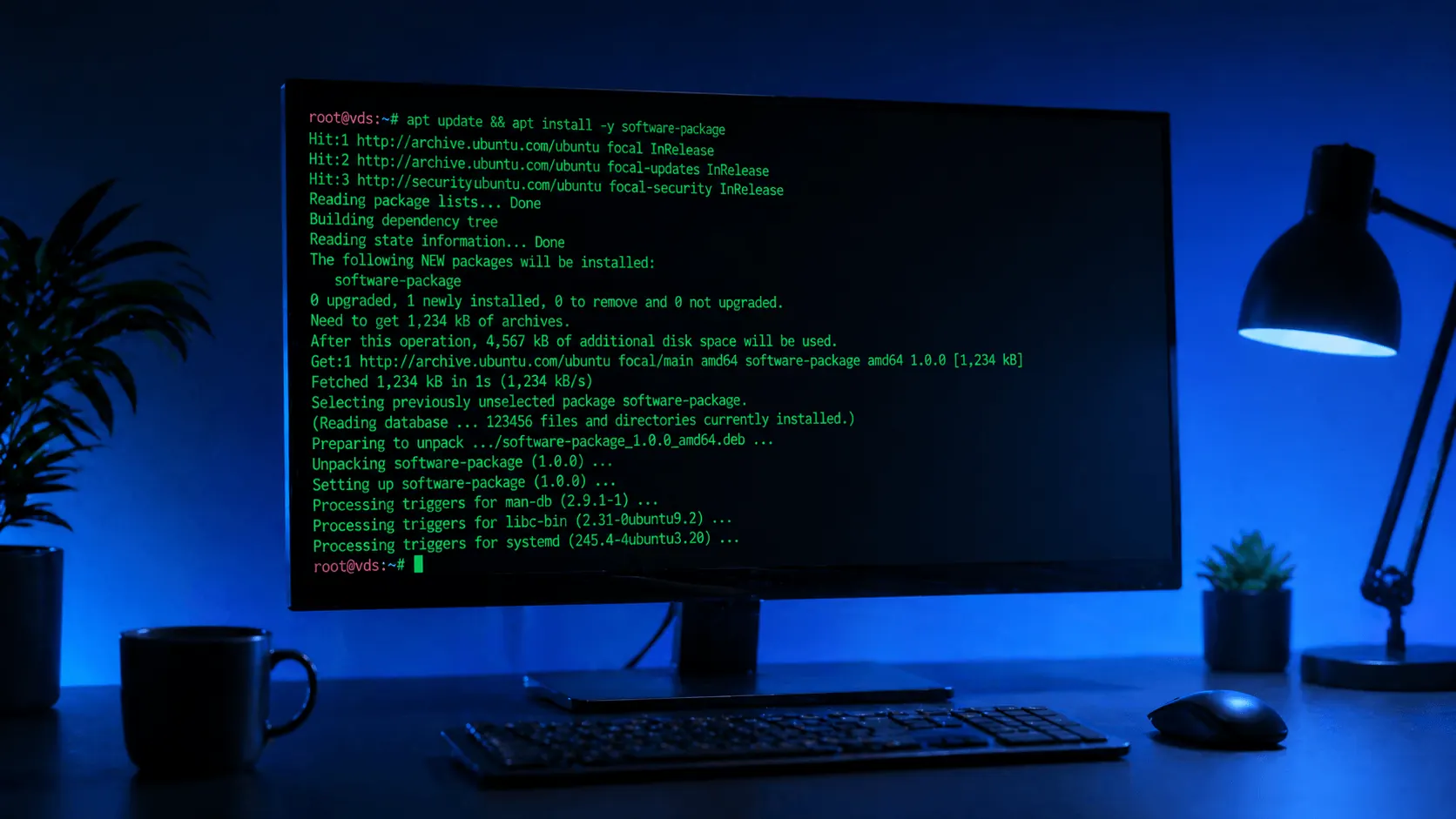
Plesk is the fastest way to manage sites, mail, DNS, and databases on your VDS through a web panel. Even without command-line experience, you can install WordPress in minutes. This guide walks through installing Plesk Obsidian on a clean Linux VDS.
Prerequisites
- Ubuntu 20.04/22.04 or AlmaLinux 8/9
- At least 2 vCPU + 4 GB RAM (Plesk recommendation)
- 20 GB+ disk
- Root access
- A domain pointing to your VDS (DNS A record set to VDS IP)
1. Update the system
# Ubuntu/Debian
sudo apt update && sudo apt upgrade -y

# AlmaLinux/RHEL
sudo dnf update -y
2. Run the Plesk auto-installer
Single-line official installer:
sh <(curl https://autoinstall.plesk.com/one-click-installer || \
    wget -O - https://autoinstall.plesk.com/one-click-installer)
Installation takes 15–25 minutes. It automatically installs Apache, Nginx, MariaDB/MySQL, PHP, Postfix, and the Plesk panel.
3. Log in to the panel
When installation completes, the terminal prints the URL and a temporary username/password:
https://VDS-IP:8443
Login: root / AUTO_GENERATED_PASSWORD
Open in browser. You’ll see an SSL warning (no Let’s Encrypt yet) — trust it temporarily and proceed.
4. License activation
Plesk gives a 30-day free trial. For production you need a license:
- Enter the license key in the setup wizard, or
- Request a leased Plesk license from KavesNET (monthly)
5. Add your first domain
Plesk panel → Websites & Domains → Add Domain →
- Domain:
yoursite.com - Hosting type: Website hosting
- Username: ftp_user (for FTP/SSH)
- Password: a strong one
Plesk auto-creates the Apache + Nginx vhost, MySQL user, and FTP account.
6. Install Let’s Encrypt SSL
In the domain settings → SSL/TLS Certificates → Get it free from Let’s Encrypt:
- Enter your email
- Check “Include www”
- Issue → SSL active in 30 seconds
For a detailed SSL guide, see our Let’s Encrypt post.
7. Install WordPress (1 click)
Plesk panel → Websites & Domains → site → WordPress → Install:
- Version: latest
- Set admin username/password
- Database is created automatically
WordPress is up in 5 minutes. For deeper WordPress tuning, our WordPress hosting guide covers it.
Plesk firewall settings
Plesk manages its own firewall (Tools & Settings → Firewall). Open ports:
- 80, 443 (HTTP/HTTPS)
- 22 (SSH)
- 8443 (Plesk panel)
- 21, 990 (FTP/FTPS)
- 25, 465, 587, 993, 995 (Mail)
If you’re also using UFW, beware — it can conflict with Plesk’s firewall. See our UFW post.
Important security steps
After installation, always do:
- Change the root password — replace the auto-installer’s
- Enable 2FA —
My Profile → Two-Factor Authentication - Move Plesk off port 8443 — reduces bot scans
- Enable fail2ban —
Tools & Settings → IP Address Banning - Auto-updates —
Tools & Settings → Update Settings
Common errors
- “Address already in use” port 80: Apache is already running →
sudo systemctl stop apache2then installer - Memory error: 4 GB RAM is required; stalls at 2 GB
- DNS warning: Domain hasn’t pointed to the VDS IP yet — propagation takes up to 24h
- MariaDB won’t start: Disk may be full → check
df -h
Backup configuration
Use Plesk’s built-in backup:
Tools & Settings → Backup Manager → Schedule:
- Daily at 03:00
- Add remote storage (FTP/S3) — local disk alone isn’t enough
For the 3-2-1 strategy, see our backup post.
Conclusion
Plesk’s biggest win is multi-site management from one panel with one click. Without a software/hosting team, the Plesk investment pays for itself many times over.
For VDS plans with Plesk license, contact us — we’ll configure for your needs.
Related: Plesk-to-Plesk Site Migration · WordPress Hosting Guide
Related Posts
You might also like these.
What Is NVMe SSD? Its Impact on Server Performance (vs SATA SSD)
What is NVMe, and how does it differ from SATA SSD? IOPS, latency, and real-world numbers showing why NVMe is now the server standard.
Read More
What Is a Dedicated Server? Who Actually Needs One?
What is a dedicated server, how does it differ from a VDS, and when is it a must? Advantages, costs, and the co-location alternative — all in this guide.
Read More
VDS Rental Guide: 10 Criteria to Check Before You Order
From CPU model to disk type, DDoS protection to backups — the 10 criteria to verify before renting a VDS, explained one by one. Don't pick the wrong plan.
Read More